Applies to: iOS and iPadOS 26 / macOS 26.5 / scrub previews need the sidecar
Scrub
On this page
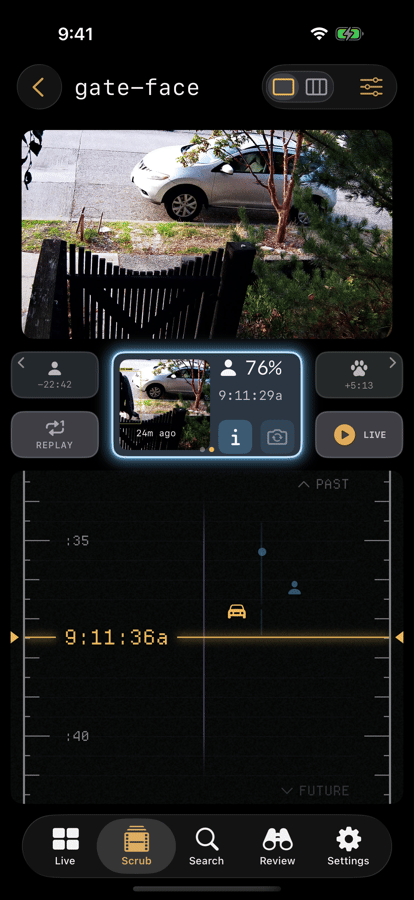
Scrub is a vertical reel of recorded footage that you drag through, with the nearest event riding along above it.
Images to find, video to confirm
The reel is built on still frames, not video. Finding the moment you want is an image problem: you recognise a shape in a thumbnail far faster than you can wait for a clip to seek and buffer. So Elsinore lets you travel through hours of still frames at whatever speed you want, and only plays video once you have found the second you care about.
Frames come from the sidecar's scrub cache. Against bare Frigate the reel still works, but without pre-rendered previews it is much less fluid.
Opening Scrub
Tapping a Live tile opens Scrub on that camera. Open the Scrub tab directly and it asks which camera and moment you want; the back chevron in its toolbar returns you to that picker. A scrub session you leave parked in the background expires after 30 minutes.
Travelling
Dragging is the main way to move. The Previous and Next chips and the GO TO row in the controls shade jump instead of travelling. The reel itself is fixed at one second per row; what a drag changes is how far you travel per row, and the app picks that automatically from how you are dragging. A slow, careful drag steps second by second. A fast flick covers hours.
Underneath, travel steps along a fixed ladder of spans: 1 second, 5 seconds, 1 minute, 5 minutes, 15 minutes, 1 hour. A finer Frame rung, roughly a tenth of a second, is available from the reel's controls shade for when you need to step actual video frames.
A slow, careful release stays exactly where you stopped; flicks land on the nearest second.
Rows snap to real preview frames where a row is a minute or less. Above that the grid wins, because there is no frame for every position.
Object activity draws in the margin as coloured spans for person, vehicle, animal, and package, at spans of ten minutes or less. Above that a span would be a few pixels tall, so the app draws per-lane counts instead.
Events are drawn on their own slower scale, so they stay in view as you scrub (about 15 seconds either side of the centre line). Short events are drawn at least about 10 seconds long so they are easy to spot; the part that really happened is bright and the extra length is dim.
Six sliders on the Scrub feel page (reach it from the controls shade or Settings › Scrub › Scrub Feel) tune this: Precision, Travel, Swipe threshold, Event drag, Event scale, and Shortest event. The last two change how wide the event scale is and how short an event may be drawn. They apply to every camera. On Mac the page adds a Trackpad slider and a Flicks stop at events switch.
The dossier card
Above the reel sits a card for the nearest event. When you are parked on an event it is lit; when you are not, it is a ghost you can tap to travel to it. It shows the snapshot, the subject, a confidence figure, and the time, plus a relative age pill on the crop.
The card has two action tiles:
- i: opens the event's detail page, which is also one of the doors into Explore.
- Camera: a menu of the other cameras that saw the same object, each with a signed time offset from where you are now. Pick one to jump to that camera at that moment. Disabled while loading, and when nothing else saw it.
Long-press the lit card for Explore this moment, which opens Explore at the time the cursor is sitting on rather than at the event's start.
- REPLAY: tap to replay the lit event from just before it began. Press and hold to loop it; the chip then reads LOOP.
Previous and Next chips step between events on this camera. If a camera's newest event is older than a threshold you set in Settings › Scrub › Hide event controls after (default 5 days; Never turns it off), those chips and the card hide themselves rather than advertising stale history. LIVE stays.
The LIVE chip
At the live edge the chip shows a green dot and Live, dimmed. When you are back in the recording it reads LIVE with how far back you are. Tapping either returns you to the live picture. The live video is off while you watch recorded footage, so it reconnects within a moment, usually about a second and a half.
Gap cards
Between events the reel shows gap cards: SWIPE LEFT, SWIPE RIGHT, or SWIPE LEFT OR RIGHT, with chevrons that fade in three steps toward the direction that has something in it. PAST and FUTURE hint bands mark which way is which. They exist so an empty stretch of reel tells you where to go rather than looking broken.
The controls shade
The slider icon in the toolbar opens the controls shade: mute, pause and speed; OBJECTS chips that filter what the reel highlights; GO TO, to jump to a date and hour; the Smooth or Frame choice; Switch camera; Export a clip; and Scrub feel ›.
Exporting a clip
The controls shade carries the export flow. Set a start and an end with the handle chips, then tap Export. A confirmation offers Export to Photos or Timelapse (25x), depending on what the span supports. Progress shows while it renders, with cancel and retry.
Export writes to Photos, so it needs add-only Photos permission. If that is denied the app says so and offers to open Settings.
Mac
On Mac the reel is driven by trackpad and keyboard as well as by dragging, and the controls live in a transport bar rather than a shade. The keyboard commands are listed on the Mac page.
On a wide window the reel is a horizontal filmstrip: thumbnails, activity, events and a time ruler, with a fixed cursor in the centre and LIVE at the right. Hover for a larger still, click to jump there, and pinch to change the zoom. The Explore button in the toolbar (Command-Shift-E) adds a timeline of every camera; see Explore on the Mac.